Emby Integration
These instructions assume you have a working Emby or Jellyfin Media server
You will need to make sure you have your url for your Emby Server. This can be in the form of an IP address or FQDN (DNS). To facilitate the integration, you will also need to generate or use an existing Emby API key.
Generate API Key
- Access the Management Dashboard by clicking the gear icon in the upper right of the screen

- In the left panel scroll down to
Adancedand selectAPI Keys
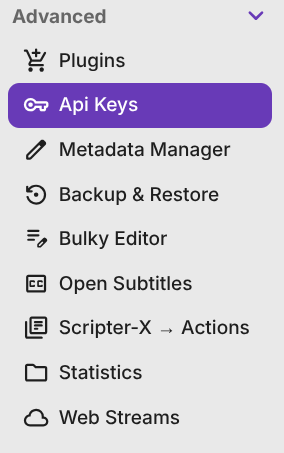
- Select New API Key and assign in descriptive name for your records
You can use an existing API key for the integration.

🛠️ Configure the Integration
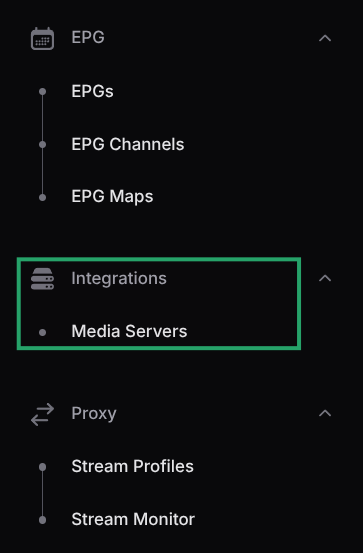
- In M3U-Editor expand the sidebar (left side), locate the integrations section and select Media Servers
-
Click Add Media Server
-
Fill in the details:
- Display Name: A friendly name for your server (e.g., "My Emby Server")
- Server Type: Select Emby or Jellyfin (depending on your server type) from the dropdown
- Host / IP Address: Your Emby server address (e.g.,
192.168.1.100oremby.example.com) - Port: The default Emby port is
8096 - Use HTTPS: Enable if your server uses SSL/TLS
- API Key/Token: Paste your Emby token obtained above
-
Click Test Connection & Discover Libraries to verify the connection and discover available libraries
-
Select which libraries you want to import (Movies and/or TV Shows)
-
Click Create to save the integration
Your media server should now be displayed under the Media Servers integrations
What Gets Synced
When you sync your Emby server, M3U Editor imports:
- Movies: All movies from selected libraries, including metadata (title, year, genre, rating, overview, cast, poster art)
- TV Series: Complete series with seasons and episodes, including all associated metadata
- Artwork: Posters and backdrop images are proxied through M3U-Editor to protect your token
The sync process respects your library selection and genre handling settings. For large libraries, the initial sync may take several minutes.