WebDAV Integration
The WebDAV integration allows you to expose video files hosted on any WebDAV-compatible server (Synology NAS, Nextcloud, Apache/Nginx WebDAV, etc.) as VOD channels and TV series within M3U Editor — without needing a dedicated media server like Emby or Plex.
How It Works
M3U Editor connects to your WebDAV server using the PROPFIND protocol to list available media files, parses metadata from filenames and folder structure, and optionally enriches the results with TMDB metadata. Media files are streamed to clients by proxying the HTTP requests through M3U Editor using basic authentication.
Key Features:
- Works with any WebDAV-compatible server (Synology DSM, Nextcloud, Apache, Nginx, Caddy, etc.)
- Username / password basic authentication
- Automatic title, year, season, and episode parsing from filenames
- TMDB metadata enrichment (posters, overviews, ratings, cast)
- Separate library paths for movies and TV shows
- Recursive directory scanning
- Configurable video file extensions
- SSL/TLS support
Prerequisites
- M3U Editor experimental branch
- A running WebDAV server accessible from the M3U Editor host
- WebDAV credentials (username and password) if the server requires authentication
- (Optional but recommended) A TMDB API key configured in M3U Editor Settings for metadata enrichment
Compatible WebDAV Servers
| Server | Default Port | Notes |
|---|---|---|
| Synology DSM (WebDAV) | 5005 (HTTP) / 5006 (HTTPS) | Enable WebDAV in DSM → File Services |
| Nextcloud | 80 / 443 | Use /remote.php/dav/files/<username>/ as path prefix |
| Apache mod_dav | 80 / 443 | Standard WebDAV |
| Nginx WebDAV | 80 / 443 | Requires nginx-dav-ext-module for full PROPFIND support |
| Caddy | 80 / 443 | Use webdav directive |
Organize Your Media
The WebDAV integration uses the same filename and folder conventions as the Local Media Integration.
Movies
Supported movie filename formats:
| Format | Example |
|---|---|
| Title (Year).ext | The Dark Knight (2008).mkv |
| Title.Year.Quality.ext | The.Dark.Knight.2008.1080p.BluRay.mkv |
| Title Year.ext | The Dark Knight 2008.mkv |
| Title.ext (no year) | The Dark Knight.mkv |
TV Shows
Recommended folder structure on the WebDAV server:
/tvshows/
  Breaking Bad/
    Season 1/
      Breaking Bad S01E01 - Pilot.mkv
      Breaking Bad S01E02 - Cat's in the Bag.mkv
    Season 2/
      Breaking Bad S02E01.mkv
  The Office/
    Season 1/
      S01E01 - Pilot.mkv
Supported episode filename formats:
| Format | Example |
|---|---|
| Show S01E02 - Title.ext | Breaking Bad S01E01 - Pilot.mkv |
| Show.S01E02.Title.ext | Breaking.Bad.S01E01.Pilot.mkv |
| Show 1x02 - Title.ext | Breaking Bad 1x02 - Cat's in the Bag.mkv |
| S01E02 - Title.ext | S01E01 - Pilot.mkv (show name from folder) |
Configure the Integration
-
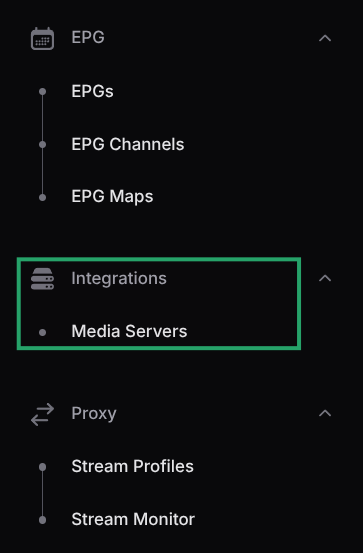
In M3U Editor expand the sidebar, locate the Integrations section and select Media Servers
-
Click Add Media Server
-
Set Server Type to WebDAV
-
Fill in the connection details:
- Display Name: A friendly name (e.g.,
My NAS Media) - Host / IP Address: Your WebDAV server address (e.g.,
192.168.1.100ornas.example.com) - Port: The port your WebDAV server listens on (e.g.,
5005for Synology,80or443for standard servers) - Use HTTPS: Enable if your server uses SSL/TLS
- WebDAV Username: Your WebDAV username (leave blank for anonymous access)
- WebDAV Password: Your WebDAV password
- Display Name: A friendly name (e.g.,
-
Under WebDAV Media Libraries, click Add Library Path and configure each library:
- Library Name: A descriptive name (e.g.,
Movies,TV Shows) - WebDAV Path: The path on the WebDAV server (e.g.,
/movies,/tvshows) - Content Type: Select
MoviesorTV Shows
Repeat for each library you want to import.
- Library Name: A descriptive name (e.g.,
-
Configure scan options:
- Scan Recursively: Scan sub-directories for media files (enabled by default)
- Auto-Fetch Metadata: Automatically look up TMDB metadata after sync completes (enabled by default)
- Metadata Source: Choose
TMDBfor full metadata enrichment orFilename Onlyto skip external lookups - Video File Extensions: Customise which file extensions are scanned (default:
mp4, mkv, avi, mov, wmv, ts, m4v)
-
Click Test Connection & Scan Paths to validate the connection and preview discovered media
-
Click Create to save the integration
After saving, the integration will appear under Media Servers and a playlist will be created automatically.
What Gets Synced
When you sync the integration, M3U Editor connects to the WebDAV server, lists all media files in the configured paths, and imports:
- Movies: Discovered movie files as VOD channels, including title, year, and genre (via TMDB)
- TV Series: Complete series imported with seasons and episodes, organized by folder and filename
- TMDB Metadata (when enabled): Poster art, backdrop images, overviews, ratings, cast, and proper genre categorisation
On the first sync, each item is grouped under the Library Name you configured (e.g., Movies). After TMDB metadata is fetched, the genre is updated to the actual TMDB genre (e.g., Action, Drama). See Integration Settings for genre handling options.
Streaming
Media files are streamed to clients by proxying HTTP requests through M3U Editor. Credentials are never exposed to the client — M3U Editor authenticates with the WebDAV server on the client's behalf.
If your WebDAV server requires authentication, ensure the WebDAV Username and WebDAV Password are configured correctly. M3U Editor will use HTTP Basic Auth when fetching and proxying media files.
Sync Actions
The integration supports the same actions as other media server integrations. See Media Server Integration Settings for a full reference.
| Action | Description |
|---|---|
| Sync Now | Triggers a full re-scan of all configured paths |
| Test Connection | Validates the WebDAV connection and counts media files |
| View Playlist | Opens the generated playlist for editing |
| Cleanup Duplicates | Merges duplicate series entries |
| Delete | Removes the integration |
Synology DSM Example
To enable WebDAV on a Synology NAS:
- Open DSM → Control Panel → File Services → WebDAV
- Enable WebDAV and note the HTTP port (default
5005) - In M3U Editor, set:
- Host: Your NAS IP (e.g.,
192.168.1.200) - Port:
5005 - Username / Password: Your DSM credentials
- WebDAV Path: The shared folder path (e.g.,
/movies,/video/movies)
- Host: Your NAS IP (e.g.,
Troubleshooting
Connection Failed
- Verify the Host, Port, and Use HTTPS settings match your server configuration
- Test the WebDAV URL directly in a browser:
http://<host>:<port>/<path> - Ensure your WebDAV server is reachable from the M3U Editor host (check firewall rules)
- For Synology, confirm WebDAV is enabled in DSM → File Services
No Media Found After Scan
- Verify the WebDAV Path exists on the server and contains video files
- Confirm the Content Type is set correctly (
MoviesvsTV Shows) - Enable Scan Recursively if files are in sub-directories
- Check the file extensions match the Video File Extensions list
Authentication Error
- Double-check the username and password
- For Nextcloud, use your Nextcloud username and an app password (not your account password)
TV Shows Not Importing Correctly
- Ensure TV show files are organized under
Series Name / Season X / episode.mkv - Use a recognised filename pattern (e.g.,
S01E02or1x02)
TMDB Metadata Not Appearing
- Confirm a TMDB API key is set in Settings
- Ensure Auto-Fetch Metadata is enabled and Metadata Source is set to
TMDB - Trigger a manual sync; TMDB enrichment runs after the initial file scan