Local Media Integration
The Local Media integration allows you to expose video files stored on your host machine (mounted into the Docker container) as VOD channels and TV series directly within M3U Editor — no separate media server required.
How It Works
M3U Editor scans configured directory paths inside the Docker container, parses metadata from filenames and folder structure, and optionally enriches the results with TMDB metadata. Media is then streamed to clients via M3U Editor's built-in proxy.
Key Features:
- No external media server needed
- Automatic title, year, season, and episode parsing from filenames
- TMDB metadata enrichment (posters, overviews, ratings, cast)
- Separate library paths for movies and TV shows
- Recursive directory scanning
- Configurable video file extensions
Prerequisites
- M3U Editor experimental branch
- Media files accessible inside the Docker container via a volume mount
- (Optional but recommended) A TMDB API key configured in M3U Editor Settings for metadata enrichment
Step 1 — Mount Your Media into the Container
Your media directories must be mounted into the Docker container. Add volume entries to your docker-compose.yml:
volumes:
  - ./data:/var/www/config
  - /path/on/host/movies:/media/movies       # movies library
  - /path/on/host/tvshows:/media/tvshows     # TV shows library
You can mount as many directories as you like. Use descriptive container paths like /media/movies or /media/tvshows to keep things organized.
Step 2 — Organize Your Media
M3U Editor parses metadata from filenames and folder structure. The patterns below are supported.
Movies
Place movie files in your movies directory. Supported filename formats:
| Format | Example |
|---|---|
| Title (Year).ext | The Dark Knight (2008).mkv |
| Title.Year.Quality.ext | The.Dark.Knight.2008.1080p.BluRay.mkv |
| Title Year.ext | The Dark Knight 2008.mkv |
| Title.ext (no year) | The Dark Knight.mkv |
TV Shows
Organize TV show files in the following recommended folder structure:
/media/tvshows/
  Breaking Bad/
    Season 1/
      Breaking Bad S01E01 - Pilot.mkv
      Breaking Bad S01E02 - Cat's in the Bag.mkv
    Season 2/
      Breaking Bad S02E01.mkv
  The Office/
    Season 1/
      S01E01 - Pilot.mkv
Supported episode filename formats:
| Format | Example |
|---|---|
| Show S01E02 - Title.ext | Breaking Bad S01E01 - Pilot.mkv |
| Show.S01E02.Title.ext | Breaking.Bad.S01E01.Pilot.mkv |
| Show 1x02 - Title.ext | Breaking Bad 1x02 - Cat's in the Bag.mkv |
| S01E02 - Title.ext | S01E01 - Pilot.mkv (show name from folder) |
TV show folders must contain season sub-folders (Season 1, Season 2, etc.) with episode files inside. A flat folder of video files without series sub-folders will trigger a warning and may not import correctly.
Step 3 — Configure the Integration
-
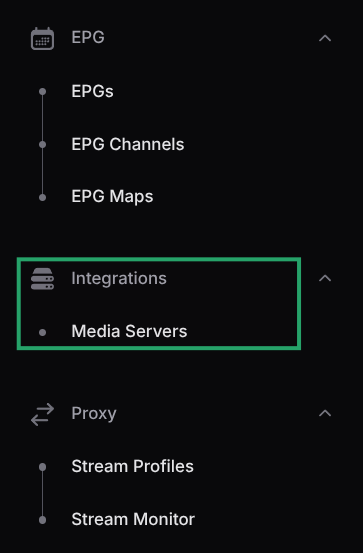
In M3U Editor expand the sidebar, locate the Integrations section and select Media Servers
-
Click Add Media Server
-
Set Server Type to Local Media
-
Fill in the Display Name (e.g.,
My Local Media) -
Under Local Media Libraries, click Add Library Path and configure each library:
- Library Name: A descriptive name (e.g.,
Movies,TV Shows) - Container Path: The path inside the container (e.g.,
/media/movies) - Content Type: Select
MoviesorTV Shows
Repeat for each library you want to import.
- Library Name: A descriptive name (e.g.,
-
Configure scan options:
- Scan Recursively: Scan sub-directories for media files (enabled by default)
- Auto-Fetch Metadata: Automatically look up TMDB metadata after sync completes (enabled by default)
- Metadata Source: Choose
TMDBfor full metadata enrichment orFilename Onlyto skip external lookups - Video File Extensions: Customise which file extensions are scanned (default:
mp4, mkv, avi, mov, wmv, ts, m4v)
-
Click Scan Paths to validate the configured paths and preview the media count
-
Click Create to save the integration
After saving, the integration will appear under Media Servers and a playlist will be created automatically.
What Gets Synced
When you sync the integration, M3U Editor scans the configured paths and imports:
- Movies: Discovered movie files as VOD channels, including title, year, and genre (via TMDB)
- TV Series: Complete series imported with seasons and episodes, organized by folder and filename
- TMDB Metadata (when enabled): Poster art, backdrop images, overviews, ratings, cast, and proper genre categorisation
On the first sync, each item is grouped under the Library Name you configured (e.g., Movies). After TMDB metadata is fetched, the genre is updated to the actual TMDB genre (e.g., Action, Drama). See Integration Settings for genre handling options.
Sync Actions
The integration supports the same actions as other media server integrations. See Media Server Integration Settings for a full reference.
| Action | Description |
|---|---|
| Sync Now | Triggers a full re-scan of all configured paths |
| Test Connection | Validates paths are accessible and counts media files |
| View Playlist | Opens the generated playlist for editing |
| Cleanup Duplicates | Merges duplicate series entries |
| Delete | Removes the integration |
Volume Mount Example
Add your media directories to the volumes: section of your docker-compose.yml:
volumes:
  - ./data:/var/www/config
  - /mnt/nas/movies:/media/movies
  - /mnt/nas/tvshows:/media/tvshows
Troubleshooting
Path Not Found / Not Accessible
- Verify the volume mount in your
docker-compose.ymlmaps the host path to the container path - Ensure the host directory exists and is readable
- Restart the container after adding new volume mounts:
docker compose up -d
No Media Found After Scan
- Check that the Container Path matches the mount target (e.g.,
/media/movies) - Confirm the Content Type is set correctly (
MoviesvsTV Shows) - Enable Scan Recursively if your files are in sub-directories
- Verify the file extension is included in the Video File Extensions list
TV Shows Not Importing Correctly
- Ensure TV show files are organized under
Series Name / Season X / episode.mkv - Use a recognised filename pattern (e.g.,
S01E02or1x02) - Check M3U Editor logs for parsing warnings
TMDB Metadata Not Appearing
- Confirm a TMDB API key is set in Settings
- Ensure Auto-Fetch Metadata is enabled and Metadata Source is set to
TMDB - Trigger a manual sync; TMDB enrichment runs after the initial file scan